
Project
The Project menu lets you save and load your projects, as well as manage external microSD card storage.
 +
+ 
Press and hold SHIFT and press PAD 16 – PROJECT to open the Project menu.
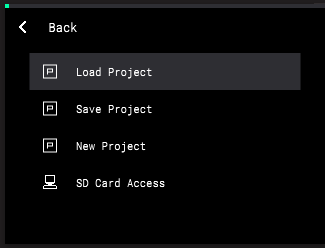
Use the ENCODER to browse the available options, and then press it to select.
Load Project
Select this option to load projects and kits.
-
Demos: This category includes demo projects, including the default startup project. These projects are great for exploring the range of sounds and styles that you can create with MPC Sample.
-
Kits: This category includes entire kits. Press the ENCODER to load the kit along with four default sequences, or press the B3 Function Button (Load Kit) to only load the kit samples with no sequence data.
-
User: This category includes user-saved projects on the internal drive.
Save Project
Select this option to save the current project.
Turn the ENCODER to scroll through letters and numbers. Press the ENCODER to select the desired character and move to the next character.
Press and hold SHIFT to access capital letters.
Press the -/+ buttons to move between characters.
Press the B2 Function Button to erase the current character.
Press and hold SHIFT and press the B2 Function Button to erase all characters at the same time.
When you have finished editing the project title, press the B3 Function Button (Do It!) to start the export.
To exit the project save page, press the B1 Function Button (Cancel).
Note: MPC Sample contains an automatic saving system. As you work on your project, your progress is saved in the background, so if you turn MPC Sample off and on, your project reloads at the last saved state. Saving your project in the Project menu copies the locally stored files to a new location, either internal or external. Because of this system, performing certain actions such as chopping, extracting, or copying on long samples may take a short time.
|
New Project
Select this option to start a new project. On the page that appears, press the B3 Function Button to confirm that you want to clear the current project and start a new project. Press the B1 Function Button to cancel and return to the Project menu.
SD Card Access
Select this option to access a microSD card (not included) inserted into the microSD Card Slot on MPC Sample from a computer connected via USB. This allows you to easily transfer samples, songs, and project files between MPC Sample and your computer.
The microSD card will mount as an external drive on your computer. You are unable to use other modes while in SD Card Access mode.
When you have finished transferring files, make sure you safely eject the microSD card drive from your computer before exiting SD Card Access mode.
Once the drive is ejected, press the B1 Function Button to exit SD Card Access mode.