
MIDI Configuration
The MIDI Configuration menu allows you to adjust how MPC Sample sends and receives MIDI and CV data. You can also use this menu to reset MPC Sample’s settings and data.
 +
+ 
Press and hold SHIFT and press PAD 8 – MIDI CONFIG to open the MIDI Configuration menu.
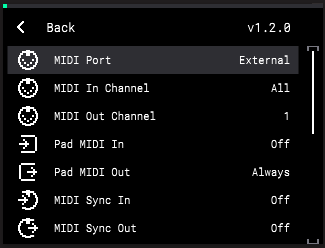
Use the ENCODER to scroll through the following options. Press the ENCODER to select a setting, and then turn it to adjust the value. Press the ENCODER again to confirm.
|
Setting
|
Description
|
Values
|
|
MIDI Port
|
This setting determines the active MIDI port for sending and receiving MIDI data. External refers to the 1/8” MIDI IN and MIDI OUT ports on the rear panel.
|
External, USB
|
|
MIDI In Channel
|
This setting determines the MIDI Channel on which MIDI input data is received. Select All to receive MIDI input data from all channels, or select a specific channel.
|
All, 1–16
|
|
MIDI Out Channel
|
This setting determines the MIDI Channel on which MIDI output data is sent.
|
1–16
|
|
Pad MIDI In
|
This setting determines whether MIDI Input can be used to trigger the pads.
|
Off, On
|
|
Pad MIDI Out
|
This setting determines whether MIDI Output is sent from the pads.
|
Never, Always, Empty
|
|
MIDI Sync In
|
This setting determines whether MPC Sample receives MIDI Sync information, and what type of information if enabled.
|
Off, Midi Clock, MTC
|
|
MIDI Sync Out
|
This setting determines whether MPC Sample sends MIDI Sync information, and what type of information if enabled.
|
Off, Midi Clock, MTC
|
|
MIDI Thru
|
This setting determines whether the MIDI OUT port also functions as a Thru port. When set to ON, MIDI data received by the MIDI IN port is also forwarded through the MIDI OUT port.
|
Off, On
|
|
Receive Program Change
|
This setting determines whether MPC Sample receives MIDI Program Change messages. When enabled, these messages can be used to trigger sequences.
|
Off, Sequence
|
|
CV/Sync Out
|
This setting determines whether MPC Sample send CV/Sync output data via the SYNC OUT port.
|
Off, On
|
|
CV/Sync Base
|
This setting determines the base CV clock resolution. A value of 1 is equal to 1 pulse per quarter note.
|
1–8
|
|
CV/Sync Division
|
This setting multiplies the CV/Sync Base setting by the given value.
|
1–24
|
The Takeover settings allow you to adjust the hardware control behavior of Parameter Takeover and Knob FX Takeover for the K1–K3 Knobs, and Fader Takeover for the FADER. Each setting can be set to one of the following options:
-
Pickup: Parameters are not editable until the hardware control position matches the parameter position. This is the default behavior for Fader Takeover.
-
Scaled: Parameters move in the same direction as the hardware control is adjusted. The rate of adjustment is scaled based on the hardware control and parameter position to ensure they eventually meet. This is the default behavior for Parameter Takeover and Knob FX Takeover.
-
Instant: As soon as a hardware control is adjusted, the parameter jumps to match the knob position.
Select RESET FACTORY SETTINGS to reset all settings on MPC Sample to their factory defaults and restart the device. Press the B3 Function Button to select YES to continue with the reset, or press the B1 Function Button to select NO to return to the MIDI Config menu.
Select RESET FACTORY DATA to delete all internal user content and restart MPC Sample. Press the B3 Function Button to select YES to continue with the reset, or press the B1 Function Button to select NO to return to the MIDI Config menu.
IMPORTANT: Doing so will remove all user content saved to the internal drive and restore MPC Sample to the factory default content. This includes any content in an unsaved user project, including the current project, and this action cannot be undone.
|