
Fader
The Fader menu allows you to select the current parameter controlled by the Fader.
 +
+ 
To open the FADER menu, press and hold SHIFT and press PAD 9 – FADER.
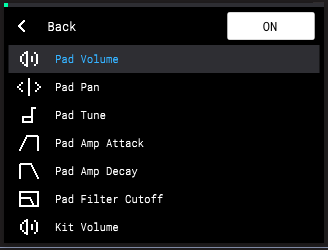
Press the B3 Function Button to turn the Fader control on or off.
Turn the ENCODER to browse the following Fader functions, and then press it to select.
-
Pad Volume: Adjust the volume level of the selected pad.
-
Pad Pan: Adjust the stereo panning of the selected pad.
-
Pad Tune: Adjust the Semi Tune value of the selected pad.
-
Pad Amp Attack: Adjust the Attack value of the Amplitude Envelope for the selected pad.
-
Pad Amp Decay/Release: Adjust the Decay or Release value of the Amplitude Envelope for the selected pad. This controls Decay if the pad is set to One Shot playback, and controls Release if the pad is set to Note On playback.
-
Pad Filter Cutoff: Adjust the Cutoff value of the Filter for the selected pad.
-
Kit Volume: Adjust the volume of the entire kit.
Similar to the K1–K3 Knobs, the FADER has absolute position only and uses soft takeover when switching between controls. This means that as you are moving between different controls, the fader’s position may not align with the current setting of the new parameter.
The brightness of the Fader LED indicates the relative position of the current parameter value. The brighter the LED, the higher the value (when Pad Pan or Pad Tune are selected, the Fader LED is brightest at the center, and dims at both the top and bottom). Move the fader until the LED begins changing brightness again, indicating the fader has regained control of the current parameter value.
Press the B1 Function Button to move back to the previous page.