
Time Correct
The Time Correct menu contains settings that help quantize the events in your project. This makes your notes snap to a grid at a defined value.
 +
+ 
To open the Time Correct menu, press and hold SHIFT and press PAD 14 – TIME CORRECT.
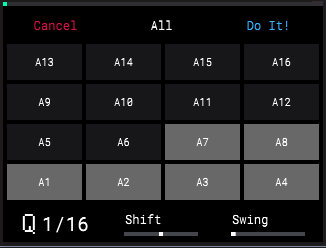
Press a PAD to select it for timing correction. Selected pads are highlighted on the display, and the pad lights up while viewing the Time Correct menu.
You can also press the B2 Function Button to select all pads at the same time.
Turn the K1 Knob to adjust the quantization (Q) value. This determines the time division that each bar of the sequence is divided into, and how note events snap to those divisions. For example, if the Q is set to 1/16, all events will snap to the nearest 1/16 note on the grid.
Turn the K2 Knob to adjust the Shift value. This setting adjusts all selected events forward or backward in the sequence by a small amount. This can allow you to create subtle timing variations that give your events a more “humanized” feel.
Turn the K3 Knob to adjust the Swing value. This setting lets you “shuffle” your beats by shifting the timing of notes so they have a triplet-like feel instead of falling on the downbeat.
To apply the Time Correct settings, press the B3 Function Button (Do It!). All recorded events for the selected pads are adjusted according to the settings.
Tips: Play your sequence before and after applying Time Correct settings to hear the difference. If you aren’t happy with the results, you can undo the settings by holding SHIFT and pressing -/UNDO.
The Q and Swing values are global and will remain at the settings shown here whether they are applied to recorded events or not. For example, changing the Q value in this menu also changes it in Sequence Mode. For the Swing value, the current setting will also affect how Note Repeat functions.
|
To exit the Time Correct menu without applying the settings, press the B1 Function Button (Cancel).