
Step Edit
The Step Edit page allows you to edit individual events in your sequence by step.
 +
+ 
To open the Step Edit page, press and hold SHIFT and press the SEQ / STEP EDIT button.
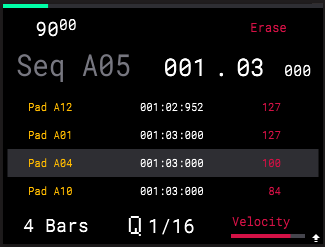
Turn the ENCODER to move between each step of the sequence at the current quantization (Q) value.
Press the -/+ buttons to move between events on the current step. You can also tap the respective pad to select its event.
Move the FADER up or down to adjust the timing of the selected event, nudging it forward or backward, respectively, from the current position.
Turn the K1 Knob to adjust the sequence length.
Turn the K2 Knob to adjust the current quantization (Q) value. This also determines the value of each step that you can scroll through using the ENCODER.
Turn the K3 Knob to adjust the velocity of the selected event.
Press and hold SHIFT and turn the K2 Knob to adjust the time signature of the Project.
Note: All sequences are tied to the same time signature.
|
Press and hold the B1 Function Button to adjust the sequence tempo using the ENCODER. Press the ENCODER to move between whole numbers and decimals.
Press the B3 Function Button to erase the selected event.
While viewing the Step Edit page, you can also press and hold the ERASE button and press a PAD to erase all events from that pad. Press the B1 Function Button to Cancel and return to the Step Edit page, or press the B3 Function Button (Do It!) to proceed with erasing the events.