
Loading and Saving Samples
To load a sample to a pad, press the SAMPLE SELECT (  ) button to open the Sample Browser.
) button to open the Sample Browser.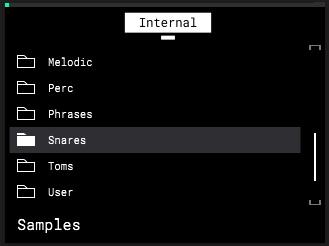
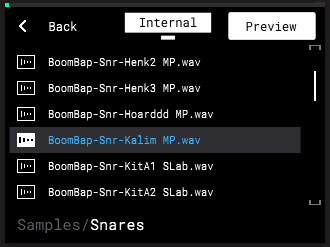
Turn the ENCODER, or press the -/+ buttons, to browse the list of sample categories.
Press the ENCODER to open a folder, and then turn the ENCODER or press the -/+ buttons to browse the list of samples.
Use the B3 Function Button to turn automatic Preview on or off. When on, each sample will play as it is highlighted.
Press the B1 Function Button to move Back.
Press the B2 Function Button to switch between the Internal drive and an External drive if you have a microSD card inserted into the microSD Card Slot. This defaults to an automatically-created MPC-Sample/Samples directory where user samples are stored, but you can freely navigate to other directories on your microSD card as needed.
To save a sample, press and hold SHIFT and press the SAMPLE SELECT / SAVE SAMPLE button.
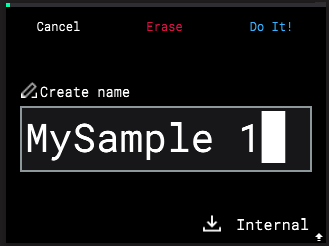
Turn the ENCODER to scroll through letters and numbers. Press the ENCODER to select the desired character and move to the next character.
Press and hold SHIFT to access capital letters.
Press the -/+ buttons to move between characters.
Press the B2 Function Button to erase the current character.
Press and hold SHIFT and press the B2 Function Button to erase all characters at the same time.
When you have finished editing the sample name, press the B3 Function Button (Do It!) to save the sample.
To exit the Save Sample page without saving, press the B1 Function Button (Cancel).